
When a customer messages you first, you can reply freely for 24 hours. But when your business starts the conversation, for example an order update, a payment reminder or an offer, WhatsApp only allows a pre-approved message template. Meta reviews each template for formatting, policy and category before you can use it.
Most rejections are avoidable. They usually come from a small set of formatting mistakes, a policy issue, or choosing a category that does not match the content. This guide explains each one with examples, based on Meta's published template rules and our own experience setting up templates for businesses in Mysore, Bangalore and across Karnataka.
What a WhatsApp Template Is and Why Meta Reviews It
A template is a fixed message with placeholders that you fill in each time you send it.
A template has a required body, and can also have a header (text or media), a footer and buttons such as Call, Visit website, Copy code or quick replies. Placeholders like {{1}} and {{2}} are swapped for real values, such as a customer name or a due date, when the message is sent.
Meta reviews templates to protect WhatsApp users from spam and misuse, and to put each template in the right pricing category. Review uses automated checks and, in some cases, people. A template must be approved before you can send it, and editing an approved template sends it back for review.
| Part | Required? | Main limits |
|---|---|---|
| Template name | Yes | Lowercase letters, numbers and underscores only, for example payment_reminder |
| Header | No | Text up to 60 characters with at most one variable, or an image, video or document |
| Body | Yes | Up to 1,024 characters, including the values that replace the variables |
| Footer | No | Up to 60 characters, plain text, no variables |
| Buttons | No | Short labels (about 25 characters each), such as call, website, copy code or quick reply |
Limits are from Meta's template documentation at the time of writing and can change. Your WhatsApp API provider's template editor usually checks them for you.
The Three Template Categories
Choosing the right category matters for approval, delivery and cost.
Every template must be submitted as Marketing, Utility or Authentication. The category decides how the message is priced and what it is allowed to contain. Meta checks that the content really matches the category you picked.
| Category | Use it for | Key rules | Example |
|---|---|---|---|
| Utility | Updates about something the customer already did or has with you: orders, bookings, payments, renewals, account alerts | Must relate to a specific transaction, account or request, or be essential to the customer. No promotional content. | "Hi {{1}}, your appointment at {{2}} is confirmed for {{3}}. Reply here if you need to change it." |
| Marketing | Offers, announcements, new products, re-engagement, festival greetings | Anything that is not Utility or Authentication is treated as Marketing. Users can block or report, so relevance matters. | "Hi {{1}}, our Diwali website package is live. Tap below to see what is included." |
| Authentication | One-time passwords (OTP) for login, sign-up or verification | Uses Meta's fixed preset wording with a Copy code or autofill button. No URLs, media or emojis. You cannot write your own text. | "{{1}} is your verification code. For your security, do not share this code." |
Common Rejection Reasons and How to Fix Them
These are the issues Meta lists most often, with a practical fix for each.
| Reason | What it looks like | How to fix it |
|---|---|---|
| Starts or ends with a variable | "{{1}}, your order is ready" or "Your code is {{1}}" | Put fixed words before the first variable and after the last one: "Hi {{1}}, your order is ready for pickup." |
| Too many variables for the text | "{{1}} {{2}} at {{3}} on {{4}}" | Add meaningful fixed text around each variable, or use fewer variables. |
| Variables numbered wrongly or side by side | {{1}}, {{2}}, {{4}} (missing 3), or "{{1}} {{2}}" next to each other | Number them in order from {{1}} with no gaps, and keep at least a word between two variables. |
| Special characters in variables | Placeholders like {{#1}} or {{$amount}}, or mismatched braces | Use plain {{1}} style (or simple lowercase named variables if your provider supports them). |
| No sample values | Template submitted without examples for the variables | Add a realistic sample for every variable, for example "Ravi", "5 Dec 2026", "WF-1024". |
| Asks for sensitive data | "Reply with your full card number" or "send your Aadhaar" | Never request full card, bank account or national ID numbers, or documents containing them. Partial identifiers, such as last 4 digits, are allowed. |
| Threatening or abusive tone | "Pay today or we will take legal action and inform everyone" | Keep reminders factual and polite. State the amount, the due date and how to pay. |
| Spam or scam-like content | "You have won! Click this link to claim" | Be specific about who you are and why the customer is getting the message. Avoid vague prize or urgency claims. |
| Duplicate template | Same body and footer as one you already have | Change the wording, or reuse the existing approved template instead. |
| Commerce policy issue | Selling restricted goods or services, or missing required details on prices and fees | Check WhatsApp's Commerce Policy for your product, and show prices and charges clearly. |
| Category mismatch | An order update that also includes a discount code, submitted as Utility | Split it: send the update as Utility and the offer as a separate Marketing template. |
Rejected vs Approved: Real Examples
Small wording changes usually make the difference.
| Rejected version | Why | Approved version |
|---|---|---|
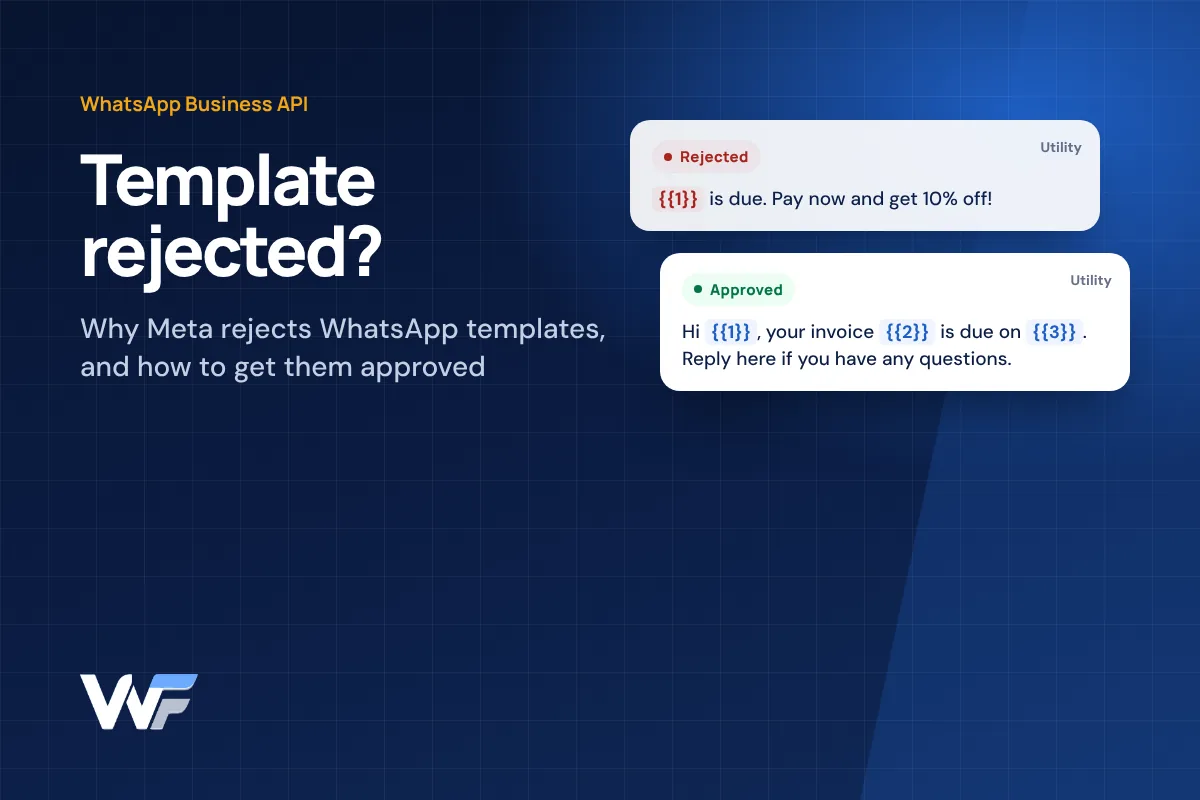
| "{{1}} is due." | Starts with a variable, too vague and almost all variable. | "Hi {{1}}, your invoice {{2}} of {{3}} is due on {{4}}. Reply here or call us if you have any questions." |
| "Your {{1}} expires {{2}}. Renew now and get 10% off!" | Mixes a reminder with an offer, so it is Marketing, not Utility, and it ends with no context. | "Hi {{1}}, this is a reminder from Weform Solution. Your {{2}} for {{3}} expires on {{4}}. To renew without any interruption, reply to this message or call us." (Utility) |
| "Pay {{1}} TODAY or service will be cut and legal action taken!!" | Threatening tone and pressure. | "Hi {{1}}, a payment of {{2}} for {{3}} is still pending. You can pay by UPI or bank transfer. Reply if you have already paid." |
| "Send your full bank account number to get your refund" | Requests sensitive financial data. | "Hi {{1}}, your refund of {{2}} for order {{3}} has been processed to the account ending {{4}}." |
The renewal reminder above is the kind of Utility template we use for client renewals: a specific service, a specific date, and a clear next step, with no offer attached.
When Meta Changes Your Category
Since April 2025, Meta checks the category during review and can change it.
If you submit a template as Utility but the content looks promotional, Meta may approve it as Marketing instead, or reject it with an incorrect-category reason. Meta can also re-categorise templates that are already approved if their content does not meet the Utility guidelines. This matters because Marketing messages are usually priced higher and are subject to more limits than Utility messages.
- Make the customer context clear. Mention the order, booking, invoice, service or account the message is about.
- Keep offers out of Utility. No discount codes, "check out our new" lines or upsell buttons in a transactional template.
- Avoid vague content. Templates like "{{1}}" or "Congratulations!" on their own are treated as Marketing.
- Request a review if you disagree. WhatsApp Manager lets you ask Meta to review a category decision within a limited period. Have your template ready a day before you need it.
Checklist Before You Submit a Template
Run through this list and most templates pass on the first try.
order_readyWhat to Do After a Rejection
A rejection is not final. You can fix and resubmit, or appeal.
- Read the reason. Open WhatsApp Manager, go to your message templates and open the rejected one. Meta shows the reason there and also emails your business admins.
- Fix and resubmit. Edit the template using the fixes above and submit it again. Approval decisions usually arrive within 24 hours.
- Appeal if you think the decision is wrong. You can request a review of a rejected template. Include clear sample values so the reviewer sees exactly how the message will look.
- Check your business setup too. Some problems are not about the template. For example, a new number may also need its display name approved before messages are delivered, and Authentication templates may need business verification or a higher messaging limit.
For pricing, setup steps and choosing a provider, see our WhatsApp Business API guide for Karnataka and Bangalore. If you are still deciding whether you need the API at all, read WhatsApp Business App vs WhatsApp Business API.
References
Official Meta documentation used for this guide.
Need WhatsApp Templates That Get Approved?
We set up the WhatsApp Business API for businesses across Karnataka, including the account, display name, message templates for OTPs, reminders and updates, and the integration with your website or software. See our local support for a WhatsApp Business API provider in Mysore and a WhatsApp Business API provider in Bangalore.
Key Takeaways
- Every business-started WhatsApp API message needs a Meta-approved template.
- Most rejections come from variable formatting: dangling, out-of-order, side-by-side or too many variables.
- Never ask for full card, bank or ID numbers, and keep reminders polite and factual.
- Keep offers out of Utility templates, or Meta may approve them as Marketing, which usually costs more.
- Read the reason in WhatsApp Manager, then fix and resubmit or appeal; decisions usually take up to 24 hours.
Frequently Asked Questions
How long does WhatsApp template approval take?
Meta usually decides within 24 hours. Appeals for rejected templates are also usually decided within about 24 hours.
Why was my Utility template approved as Marketing?
Since April 2025, Meta checks the category during review. If the content includes promotional wording or does not clearly relate to a specific transaction, account or request, it can be approved as Marketing instead. Remove the promotional parts or split them into a separate template.
Can a WhatsApp template start with the customer name variable?
No. A template cannot start or end with a variable. Start with a word such as "Hi {{1}}," and end with fixed text.
Can I write my own text for an OTP template?
No. Authentication templates use Meta's preset wording, such as "{{1}} is your verification code", with an optional security note and expiry line and a Copy code or autofill button. URLs, media and emojis are not allowed.
Do I need a new template for each language?
Yes. Each language version is submitted and approved separately, for example English and Kannada versions of the same reminder.
My template is approved but messages are not delivered. Why?
Check the account setup as well as the template. Common causes are a display name that is not yet approved, the customer's number not being on WhatsApp, quality or messaging limits on your number, or the template being paused or re-categorised.
Published by Weform Solution
Weform Solution designs websites and builds web applications, ERP and CRM systems, mobile apps and business messaging for businesses in Mysore, Bangalore and across Karnataka. Learn more about Weform Solution.
Talk to Us About Your Project
Share what you want to build and we will suggest a practical next step.